
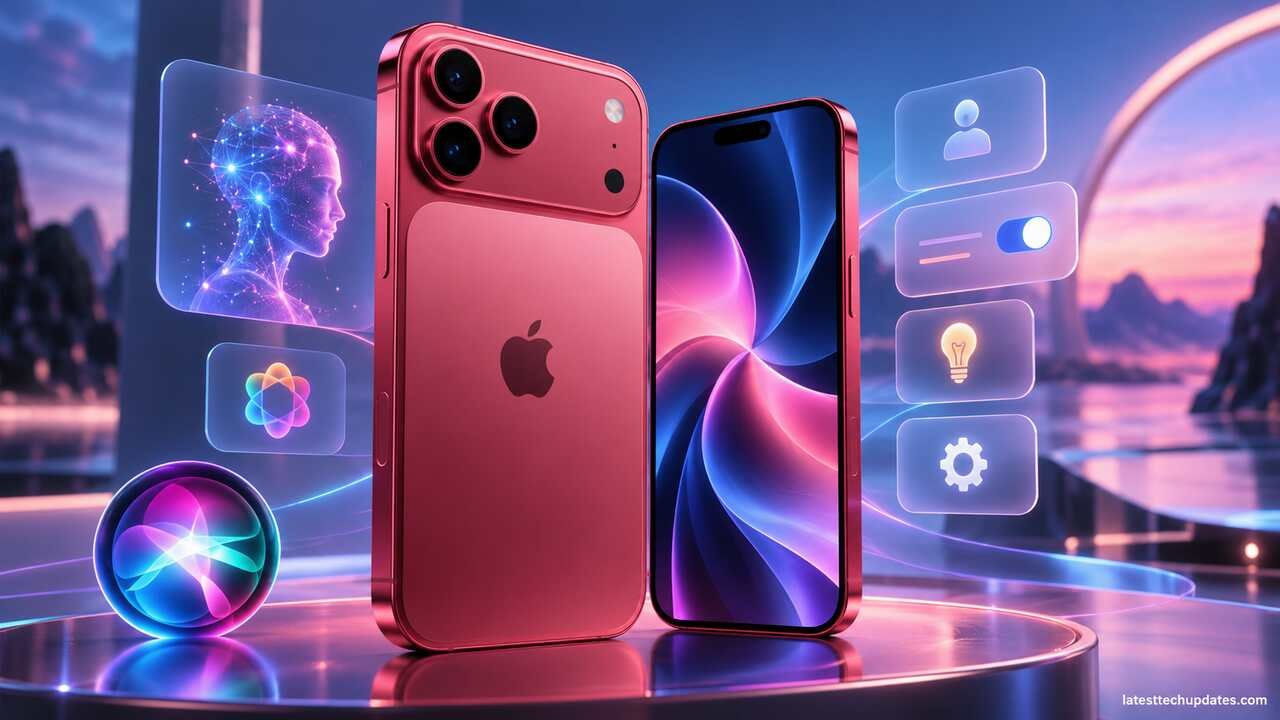
The iPhone 18 Pro Max arrives with iOS 27, Apple Intelligence, and the new Siri AI experience. The biggest change is not simply that the phone has more AI features. Apple has made artificial intelligence part of everyday iPhone tasks, including searching your personal information, understanding what is on the screen, working with the camera, summarizing information, editing photos, and taking actions across apps.
The iPhone 18 Pro Max is also particularly well equipped for these workloads. It uses Apple’s A20 Pro chip with a Dual 16-core Neural Engine, while Apple Intelligence can process suitable tasks directly on the device and use Private Cloud Compute when more powerful server processing is required. The phone has a 6.9-inch Super Retina XDR display, 256GB to 2TB storage options, and Apple’s stated maximum of up to 45 hours of video playback.
For a new owner, however, the most useful question is simpler: which features should you actually set up, and which iOS 27 settings are worth changing?
This guide focuses on exactly that.
What Is New on the iPhone 18 Pro Max With iOS 27?
The iPhone 18 Pro Max combines major hardware changes with a much more capable AI system.
The A20 Pro chip has a 6-core CPU, 7-core GPU with Neural Accelerators, and a Dual 16-core Neural Engine. Apple says the Neural Engine provides twice the AI processing capability of the previous A19 Pro generation. There is also a redesigned vapor chamber intended to improve sustained performance during demanding workloads.
For normal users, those specifications matter because more AI processing can happen locally without depending entirely on a remote server. They can also help with computational photography, image generation, demanding games, video work, and other intensive tasks.
iOS 27 adds the next generation of Apple Intelligence and introduces Siri AI in beta. Siri AI brings personal context understanding, onscreen awareness, broader general knowledge, more app actions, camera-based AI, and a dedicated Siri app for continuing previous conversations.
iPhone 18 Pro Max features that matter most in everyday use
| Feature | What it means in practice |
| A20 Pro | More performance for demanding apps, games, photography, video, and on-device AI |
| Dual 16-core Neural Engine | Dedicated processing resources for Apple Intelligence and other machine-learning tasks |
| 6.9-inch OLED display | More room for reading, editing photos, viewing documents, maps, and media |
| Up to 45 hours video playback | Apple’s maximum video playback rating, not a guarantee of real-world everyday battery life |
| Camera Control | Faster access to Camera settings and Visual Intelligence |
| Action button | Can launch frequently used functions, Shortcuts, Visual Intelligence, Focus, and more |
| USB-C with USB 3 | Supports charging, DisplayPort, and data transfers up to 10Gb/s with suitable equipment |
| iOS 27 | Adds Siri AI and the latest Apple Intelligence features |
Apple’s battery figures are controlled ratings. Actual battery life still depends on brightness, cellular signal, camera use, games, background activity, AI workloads, navigation, and other factors.
Apple Intelligence and Siri AI Are Not Exactly the Same Thing
It is useful to separate these two terms.
Apple Intelligence is the wider AI system built into iOS. It powers features across apps such as notification summaries, writing assistance, Visual Intelligence, photo tools, Image Playground, intelligent organization, and Siri.
Siri AI is the new AI-focused version of Siri that uses Apple Intelligence.
Siri AI is much more conversational than the traditional Siri assistant. It can use personal context, understand information already displayed on your screen, answer general questions, work with information in your apps, and perform actions based on what you ask.
That distinction matters because turning off or not using Siri AI does not necessarily remove every Apple Intelligence feature from iOS.
Siri AI on iPhone 18 Pro Max: What Can It Actually Do?
Siri AI is one of the biggest changes in iOS 27, but it is still officially a beta feature.
1. Understand personal context
Siri AI can use information from apps such as Messages, Mail, Photos, and Calendar to help locate something that would otherwise take time to find manually.
For example, you could ask Siri to find photos from a particular trip or locate information that someone sent you earlier.
This is more useful than conventional voice assistance because the request does not always need an exact app name, filename, or search phrase.
2. Understand what is on your screen
Siri AI can analyze supported content already visible on your iPhone.
You might open a document and ask Siri to explain part of it, compare information from files, or perform an action related to what you are viewing. Apple’s Visual Intelligence technology is used as part of this experience.
This could become one of the most useful iOS 27 features because it reduces the need to copy information from one app into another.
3. Use Siri with the camera

Siri mode is available inside Camera when Siri AI is enabled.
Point the camera at something and Siri can help identify, explain, search, translate, or take relevant actions based on what the camera sees. Visual Intelligence can also recognize plants and animals, work with visible text, and provide information about places or objects.
4. Continue conversations
Siri AI has a dedicated Siri app that keeps conversations together.
That changes Siri from something you normally ask one question at a time into an assistant where longer conversations can be revisited and continued.
5. Write with Siri
Siri AI can help draft, revise, summarize, and adjust writing.
This can be useful for messages, emails, notes, and other text. As with any generative AI system, important facts in AI-generated writing should still be checked before sending or publishing the result.
6. Answer broader questions
Siri AI has broader world knowledge than traditional Siri and can respond to more open-ended questions.
This makes Siri more useful for explanation and research-style queries rather than limiting it mostly to commands such as timers, calls, reminders, and weather.
How to Set Up a New iPhone 18 Pro Max
Apple’s Quick Start system remains the easiest option if you already have an iPhone or iPad. Place the devices near each other during setup and follow the instructions to transfer supported apps, settings, accounts, and content.
For a new iPhone 18 Pro Max, I would prioritize the setup in this order.
1. Transfer your data first
If you are replacing another iPhone, use Quick Start before spending time customizing the new phone.
Keep both devices charged and connected to reliable Wi-Fi during a large wireless transfer.
Do not erase or trade in your old iPhone until you have confirmed that important photos, messages, contacts, authentication apps, and other critical information are available on the new device.
2. Set up cellular service
Depending on the version of the iPhone 18 Pro Max sold in your country and your carrier, cellular service may use eSIM or a physical SIM.
Follow the carrier activation instructions shown during setup.
3. Sign in to your Apple Account
Your Apple Account connects services such as iCloud, App Store downloads, Find My, Messages, FaceTime, backups, passwords, and device synchronization.
For security, use a strong device passcode and make sure two-factor authentication is enabled on your Apple Account.
4. Configure Face ID
Register Face ID during setup or later from the Face ID and passcode settings.
Face ID is used for more than unlocking the phone. It also protects purchases, passwords, supported apps, and other sensitive information.
5. Confirm that iOS is updated
A recently purchased phone may receive a minor iOS 27 update after activation.
Install current stable updates under:
Settings > General > Software Update
Updates can contain bug fixes and security improvements in addition to visible features.
6. Check your iCloud backup
Go to your iCloud settings and confirm that the information you care about is being backed up or synchronized.
This is particularly important before experimenting with major settings, restoring data, or eventually replacing the phone.
How to Turn On Siri AI in iOS 27
On the iPhone 18 Pro Max:
- Open Settings.
- Tap Siri.
- If Siri is disabled, tap Turn On Siri.
- Tap Try Siri AI (Beta).
- Follow the instructions shown on the iPhone.
Apple currently describes Siri AI as a beta feature. It requires an Apple Intelligence-capable iPhone running iOS 27 or later, and Siri AI initially supports English. Apple also says it is not initially available in the European Union on iOS.
This regional and language distinction is important. Apple Intelligence itself supports more languages, while the new Siri AI rollout is narrower at launch.
Ways to Activate Siri AI
Once configured, you can use several methods.
You can say “Siri” or “Hey Siri,” press and hold the side button, or use supported headphones. With Siri AI, Apple also allows activation through the Dynamic Island by swiping down from the top of the screen.
If voice activation causes unwanted triggers, go to:
Settings > Siri > Requests
There you can adjust voice activation, side-button access, and Type to Siri.
Review Siri’s App Access
Personal context is useful only when Siri has appropriate access to the apps containing the information you want it to use.
Go to:
Settings > Siri > App Access
You can inspect apps individually and decide whether Siri should learn from them and provide related suggestions.
This is worth reviewing rather than simply leaving every available option untouched. An app containing information you rarely want Siri to use may not need the same level of access as Calendar, Mail, or another service you regularly search through Siri.
Apple Intelligence Features Worth Trying First
Siri receives most of the attention, but several other Apple Intelligence features may have a bigger effect on everyday iPhone use.
Notification summaries
Apple Intelligence can summarize groups of notifications so you do not have to read every alert individually.
This is particularly useful with busy group conversations and apps that generate several related notifications. Apple also supports Priority Notifications and an intelligent Reduce Interruptions Focus.
AI-generated summaries can occasionally misinterpret context, so open the original message when accuracy matters.
Mail and Messages summaries
Apple Intelligence can summarize emails and unread conversations.
This can make a crowded inbox easier to scan, but summaries should be treated as a convenience rather than a replacement for reading an important legal, financial, medical, work, or personal message.
Photos
iOS 27 expands Apple Intelligence photo editing with tools including Spatial Reframing, Extend, and improved Clean Up. Apple also allows users to save a frame from a video as a photo.
These tools are useful when the original composition is not ideal, but generated or reconstructed image areas may not represent what was actually present outside the original frame.
Safari
Apple Intelligence can summarize webpages, organize tabs, and help with productivity tasks.
One particularly practical iOS 27 feature is Notify Me, which can monitor supported web pages for changes such as a product restock or price change.
Image Playground
Image Playground can create images using Apple Intelligence, and the current generation adds photorealistic image generation.
Because these are generated images, they should not be treated as factual photographic evidence.
Siri AI and ChatGPT
Apple Intelligence can also work with ChatGPT where the integration is available.
Go to:
Settings > Siri > Extensions > ChatGPT
Then enable the extension and follow the setup instructions.
Signing into a ChatGPT account is optional. Apple states that signing in is required if you want requests saved to your ChatGPT conversation history.
There is an important privacy distinction.
When the extension is used without a ChatGPT account, Apple says your Apple Account information is not provided to OpenAI and requests must be processed only to provide the response, subject to applicable legal requirements. When you sign in to your own ChatGPT account, your ChatGPT account settings and OpenAI’s applicable data policies govern that use.
AI answers can still be wrong, regardless of whether the answer comes from Siri AI, ChatGPT, or another generative system. Verify important information before relying on it.
How Apple Intelligence Handles Privacy
Apple uses several approaches rather than sending every AI request to the same cloud service.
Some processing takes place directly on the iPhone. More demanding Apple Intelligence requests can use Apple’s Private Cloud Compute system.
Apple states that personal data processed through Private Cloud Compute is not stored and is not accessible to Apple, while searches and requests can use random identifiers rather than being directly associated with an Apple Account.
That does not mean users should ignore privacy settings. Siri may be able to work with highly personal content from Messages, Mail, Photos, Calendar, and other apps, so reviewing app access remains sensible.
Best iPhone 18 Pro Max Settings to Change
The default configuration works, but several settings are worth reviewing during the first few days.
1. Set a battery charge limit
Go to:
Settings > Battery > Charging
iPhone 15 and later models allow a maximum charge level to be selected. A lower limit such as 80 percent can reduce battery wear if the phone spends long periods plugged in or is charged frequently. The phone may occasionally charge to 100 percent even when a lower limit is selected so that its battery percentage estimate remains accurate.
A lower charge limit is not ideal for everyone.
If you regularly finish the day with very little battery remaining, using the full available capacity may be more useful than prioritizing long-term battery wear.
2. Customize the Action button
Go to:
Settings > Action Button
The Action button can be assigned to functions including Silent Mode, Focus, Camera, Visual Intelligence, Flashlight, Voice Memo, music recognition, Translate, Magnifier, a Control, a Shortcut, or an accessibility feature.
For an iPhone 18 Pro Max, particularly useful choices include:
- Visual Intelligence if you frequently use camera-based AI.
- A Shortcut if you already use Apple Shortcuts.
- Focus if you switch frequently between work and personal modes.
- Translate when traveling.
- Silent Mode if you prefer the traditional behavior.
3. Customize Camera Control
Camera Control can open the Camera and adjust settings such as exposure, depth, zoom, cameras, Photographic Styles, and tone.
Go to:
Settings > Camera > Camera Control > Customize
You can select which controls are available and change their order.
If accidental presses are a problem, Camera Control also has accessibility settings for light-press force and double-press speed under:
Settings > Accessibility > Camera Control
4. Turn on focus and exposure lock for Camera Control
For more deliberate photography:
Settings > Camera > Camera Control > Lock Focus and Exposure
This lets you maintain autofocus and exposure settings while framing a shot.
5. Review notification summaries
Go to:
Settings > Notifications
Decide which apps genuinely benefit from AI summaries and which should continue displaying their original notification text.
For important banking, security, work, health, or authentication alerts, reading the original notification is generally safer than relying only on an AI summary.
6. Set up Focus modes
iOS Focus modes are still one of the easiest ways to make a smartphone less distracting.
Create separate modes for activities such as:
- Work
- Sleep
- Driving
- Personal time
- Gaming
Apple Intelligence can also help identify notifications that may require immediate attention through Intelligent Breakthrough & Silencing where supported.
7. Review Privacy & Security
Open:
Settings > Privacy & Security
Check location, microphone, camera, contacts, photos, Bluetooth, and tracking permissions.
A practical rule is to give an app only the access it needs for the feature you actually use.
8. Check Siri suggestions
Open:
Settings > Siri > Suggestions
You can choose whether Siri suggestions appear in search, notifications, App Library, sharing, and other areas.
Turning off irrelevant suggestions can make the phone feel less cluttered without disabling Siri completely.
Useful iPhone 18 Pro Max Tips
Use Siri AI for finding information instead of manually searching every app
Personal context is most useful when you know something exists but cannot remember exactly where.
Instead of opening Photos, Messages, Mail, and Calendar separately, try asking Siri to locate the information.
Ask Siri about whatever you are already viewing
If you are reading a document, looking at an image, or reviewing information in Files, ask Siri about that content before copying it into another app.
Onscreen awareness is one of the features that most clearly separates Siri AI from previous Siri versions.
Use Visual Intelligence from the most convenient shortcut
Visual Intelligence can be accessed through the Camera app with Siri AI, Camera Control, the Action button, Lock Screen, or Control Center.
There is little benefit in configuring all of them. Pick the method that fits how you hold and use the phone.
Customize Camera Control instead of accepting every option
Removing camera controls you rarely use reduces the number of gestures needed to reach the setting you actually want.
Use the charge limit according to your schedule
If your iPhone normally finishes the day with plenty of battery remaining, a lower charging limit may make sense.
If you frequently travel or spend long periods away from a charger, temporarily charging to 100 percent may be more practical.
Use Type to Siri in quiet environments
Voice is not always convenient. Type to Siri can be useful in meetings, public transport, classrooms, or other situations where speaking to the phone would be disruptive.
Check AI-generated results when accuracy matters
This applies to Siri AI, writing assistance, notification summaries, ChatGPT responses, and other generative features.
AI is useful for saving time, organizing information, and generating first drafts. It should not automatically be treated as a source of truth.
Siri AI Not Showing? Check These Things
If Try Siri AI (Beta) does not appear, start with the simple checks.
Confirm that you are running iOS 27
Go to:
Settings > General > Software Update
Siri AI requires iOS 27 or later.
Check the language
Siri AI is initially rolling out in English, even though the wider Apple Intelligence system supports additional languages.
Check both the iPhone language and Siri language if the feature does not appear.
Check regional availability
Apple says Siri AI is not initially available in the European Union on iOS. Other features can also vary by country or region.
Restart after updating
If you have just installed a major iOS update or changed language settings, restart the iPhone and check Siri settings again.
Check internet access
Siri requires an internet connection for normal operation, even though some Apple Intelligence processing happens on the device.
Do not factory-reset the phone as an early troubleshooting step
A factory reset is disruptive and can delete local data if the device has not been backed up correctly.
For a missing Siri AI option, first check iOS version, language, region, account restrictions, network connection, and Apple’s service availability.
Important Siri AI Limitations
Siri AI is much more capable than traditional Siri, but there are several limitations worth knowing before depending on it heavily.
First, Siri AI is still labeled beta. Features can change and mistakes are possible.
Second, availability depends on language, region, and supported hardware.
Third, Apple says certain Apple Intelligence features that depend on server-side models are subject to daily usage limits. These limits can vary by the feature, request complexity, system demand, and other factors.
Finally, an AI assistant having access to personal context does not mean every answer will be correct. Information taken from messages, emails, web results, or generated responses may still be incomplete or misunderstood.
Is the iPhone 18 Pro Max a Good Device for Apple Intelligence?
From a hardware perspective, the iPhone 18 Pro Max is built specifically around Apple’s latest AI direction.
The A20 Pro’s Dual 16-core Neural Engine, increased memory bandwidth, redesigned thermal system, large display, and long battery rating make it particularly well suited to heavier Apple Intelligence use.
That does not mean you need an iPhone 18 Pro Max simply to use Apple Intelligence. iOS 27 Apple Intelligence also supports earlier eligible models, including the iPhone 15 Pro and Pro Max and iPhone 16 models or later.
The Pro Max makes more sense for someone who also values the 6.9-inch screen, long battery life, advanced camera system, higher sustained performance, and large storage options.
If your main requirement is simply access to AI features, a less expensive supported iPhone may meet that need.
Frequently Asked Questions
Does the iPhone 18 Pro Max support Apple Intelligence?
Yes. The iPhone 18 Pro Max ships with iOS 27 and is fully compatible with the current generation of Apple Intelligence and Siri AI.
Is Siri AI different from normal Siri?
Yes. Siri AI adds conversational interaction, personal context understanding, onscreen awareness, broader world knowledge, more app actions, camera-based AI, and a dedicated conversation app. It is currently a beta feature.
Is Siri AI free?
Siri AI is part of Apple Intelligence on supported devices, but Apple says some server-based Apple Intelligence features have daily usage limits and that expanded access to certain features will be available for a fee in the future.
Can Siri AI use ChatGPT?
Yes, where the ChatGPT extension is available. It can be enabled through Siri settings, and signing in to a ChatGPT account is optional.
Can I turn off Apple Intelligence summaries?
Yes. Apple lets you disable features such as Messages summaries, Mail summaries, notification summaries, and Priority Notifications individually through their respective settings.
Should I set the iPhone 18 Pro Max battery limit to 80 percent?
It depends on how you use the phone. A lower charge limit can help reduce battery wear if you regularly keep the phone connected to power, but users who need maximum daily battery life may prefer a higher limit or 100 percent.
Final Thoughts
The iPhone 18 Pro Max and iOS 27 represent a significant shift in how Apple expects people to interact with an iPhone. Apple Intelligence is no longer limited to isolated writing or image tools. It now connects Siri, personal information, the screen, Camera, Photos, notifications, Safari, and other parts of iOS.
Siri AI is the feature to watch most closely. Personal context, onscreen awareness, camera intelligence, broader knowledge, and deeper app actions could save substantial time when they work correctly. The beta status, regional availability, usage limits, privacy choices, and possibility of incorrect AI output are equally important.
For a new iPhone 18 Pro Max, the most useful first changes are straightforward: complete a secure data transfer, enable backups, configure Siri AI, review Siri’s app access, customize Camera Control and the Action button, set an appropriate battery charge limit, and adjust notification summaries rather than accepting every default.
That produces a better everyday experience than simply turning on every new feature because it is available.
