


Introduction
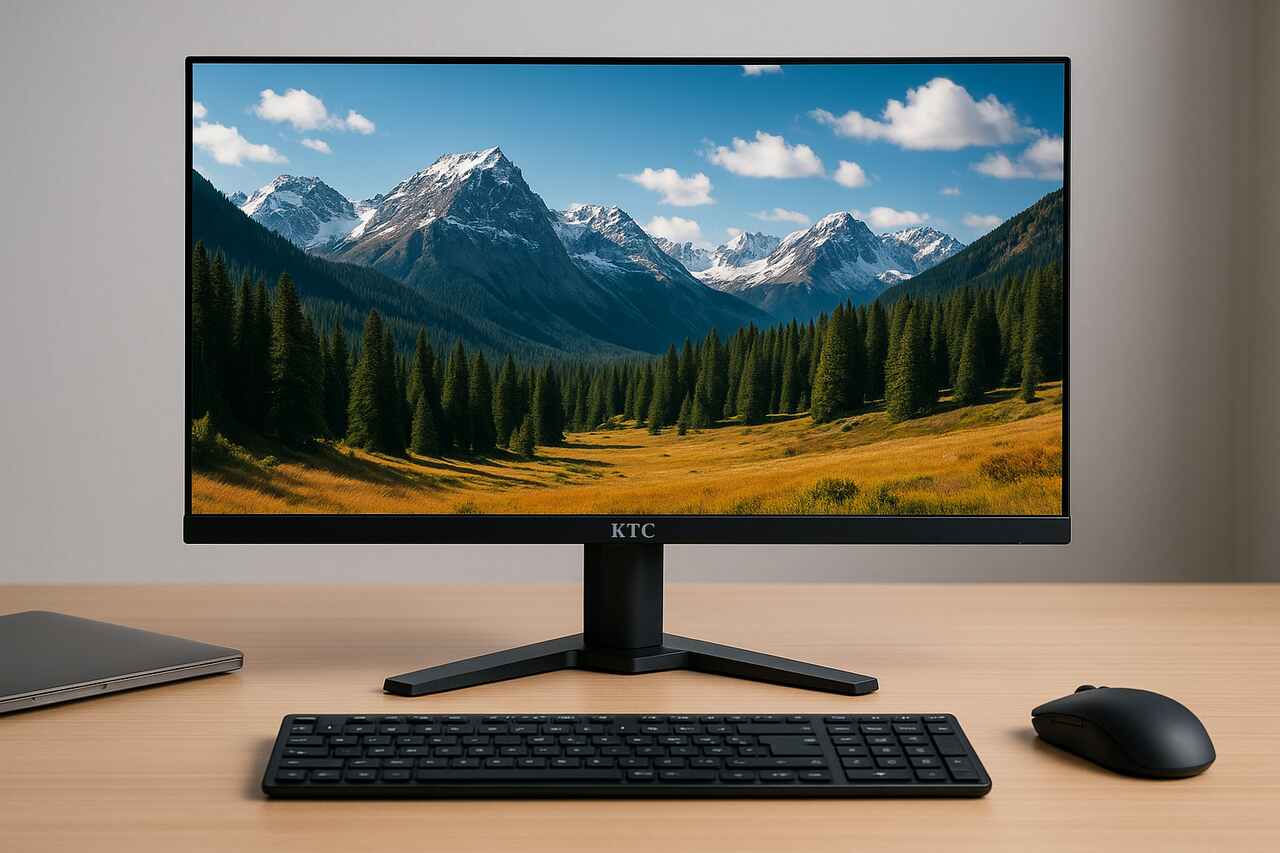
A KTC monitor has become a popular choice for users who want fast refresh rates, vivid color reproduction, and reliable build quality without the premium price tag often associated with well-known brands. Understanding how to choose, configure, and maximize a KTC monitor ensures you obtain the best level of clarity, responsiveness, and viewing comfort. This guide walks you through seven actionable steps, each with detailed explanations and added sub insights, so you can confidently select and use a KTC monitor for gaming, creative work, office tasks, or general everyday viewing.
Understand the Core Specifications of a KTC Monitor
Choosing the right KTC monitor begins by reviewing its essential performance specifications. The first priority is determining whether you want a model optimized for gaming, color-critical work, or standard productivity tasks. Refresh rate, panel type, resolution, and brightness levels are major deciding factors because they directly impact clarity, responsiveness, and overall viewing experience.
When evaluating different models, pay attention to screen size options, available aspect ratios, adaptive sync compatibility, and response time ratings. These components determine whether motion will appear smooth, colors will render accurately, and text will look crisp. KTC manufactures displays ranging from compact 24 inch options up to immersive ultrawide designs, giving you flexibility based on desk space, budget, and intended use. Each configuration has unique performance advantages, so understanding the characteristics of each metric helps you match the monitor to your needs.
It is also helpful to look beyond raw numbers and consider how different specifications interact with one another. A high refresh rate paired with a weak color gamut may still fall short for visual creators, while a 4K screen with limited contrast may disappoint movie watchers. By examining how every feature contributes to your preferred viewing style, you can make a more informed long term choice.
Compare Resolution Categories
Different resolutions greatly affect image detail and workload performance.
Full HD provides basic clarity for smaller screens.
Quad HD balances sharpness and gaming performance.
4K UHD offers top tier detail for editing and high resolution media.
Review Panel Technology
The panel type determines color uniformity and viewing angles.
IPS excels at accuracy and wide viewing.
VA offers stronger contrast.
Fast IPS combines speed and quality for gaming.
Evaluate Refresh Rate and Motion Handling
Smooth movement is crucial whether you play competitive games or prefer fluid desktop operation. KTC offers monitors with refresh rates ranging from 60Hz up to 165Hz and beyond, and selecting the correct speed ensures motion appears crisp rather than stuttered. A higher refresh rate not only benefits gaming but also enhances everyday scrolling and animation transitions.
To fully benefit from a fast refresh monitor, ensure your computer’s graphics hardware can output consistent frame rates within the monitor’s range. Features like adaptive sync help stabilize motion by matching the monitor’s refresh cycle to the output of your graphics processor. This prevents issues such as tearing or stuttering, which can disrupt immersion and reduce clarity during movement. KTC monitors featuring these technologies often provide smoother transitions without noticeable artifacts.
Different models also include low response time metrics that affect how quickly pixels shift between colors. Lower response times reduce ghosting trails, making fast action clearer and more enjoyable. When all these factors combine, the monitor produces seamless visual results across a wide range of applications.
Identify Refresh Rate Needs
General use works well with 75Hz.
Competitive gaming benefits most from 144Hz to 165Hz.
Examine Response Time Ratings
Faster values minimize ghosting.
Overdrive modes further sharpen transitions when calibrated properly.
Set Up Adaptive Sync and Performance Modes
A KTC monitor equipped with adaptive sync technology offers automatic correction for mismatched frame rates, creating a more stable visual output. This feature is especially valuable during gaming or rapid motion sequences, ensuring smoother results. Once you activate adaptive sync, the monitor dynamically adjusts to maintain consistency and reduce visual artifacts.
Many models also include multiple preset performance modes tailored to different activities. Game mode, movie mode, sRGB mode, and reading mode alter color temperature, brightness, and contrast levels. These presets allow you to shift quickly between tasks without manually adjusting every setting. Choosing the appropriate mode enhances visual quality and reduces eye strain when working for long periods.
Some KTC monitors offer advanced menu controls hidden within the on screen display. These include sharpness adjustment, color temperature fine tuning, black stabilizers, and local dimming controls. Exploring these features ensures you unlock the full potential of your display.
Activate the Correct Adaptive Mode
Enable the setting within the monitor’s menu.
Match it with your GPU panel for stability.
Configure Performance Presets
Use preloaded game and media modes.
Customize brightness and gamma to your preferences.
Optimize Color Calibration and Image Settings
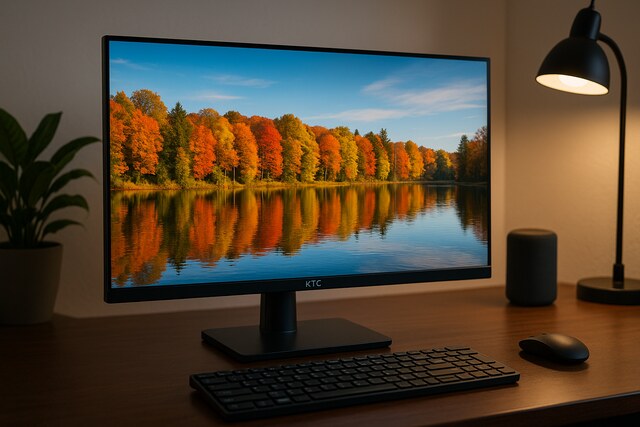
Accurate color representation benefits both entertainment and professional tasks. A properly calibrated KTC monitor ensures true to life tones, balanced contrast, and comfortable brightness levels. Starting with basic adjustments helps create a neutral baseline suited for most general workflows.
To improve accuracy further, adjust color temperature, gamma, and saturation until the picture appears natural and consistent. If your model includes an sRGB preset, it can serve as a dependable anchor for balanced color output. Creative professionals may choose to use third party calibration tools to obtain the most precise results for editing environments.
Environmental lighting also affects how colors appear on screen. Calibrating in a well lit or extremely dim space can lead to misjudged settings. For best results, adopt balanced ambient lighting around your workspace to ensure that the screen’s output remains consistent throughout the day.
Refine Color Temperature
Use warm tones for reading comfort.
Use cooler tones for sharper imaging.
Adjust Brightness and Gamma
Increase brightness for daylight conditions.
Lower gamma heightens detail in dark scenes.
Configure Ergonomics and Workspace Placement
Proper placement of your KTC monitor enhances comfort, posture, and visual stability. Position the screen at eye level and maintain an appropriate viewing distance based on screen size. This ensures you avoid unnecessary neck strain and maintain consistent focus across the entire display.
Many models include tilt, swivel, or height adjustment stands that allow flexible repositioning. Users working extended hours benefit greatly from customizing these physical settings to match their seating and desk height. If your monitor supports VESA mounting, you can attach it to an adjustable arm for additional mobility and cable organization.
Lighting plays an influential role in long term viewing comfort. Prevent glare by keeping strong light sources away from the front of the screen. You may also adjust the monitor angle slightly downward to reduce reflections from overhead lighting.
Position the Display Correctly
Align the top edge with your eye level.
Maintain a comfortable distance proportional to screen size.
Minimize Glare and Reflection
Avoid placing the screen opposite windows.
Use soft ambient lighting for consistent visibility.
Compare KTC Monitor Models and Feature Sets
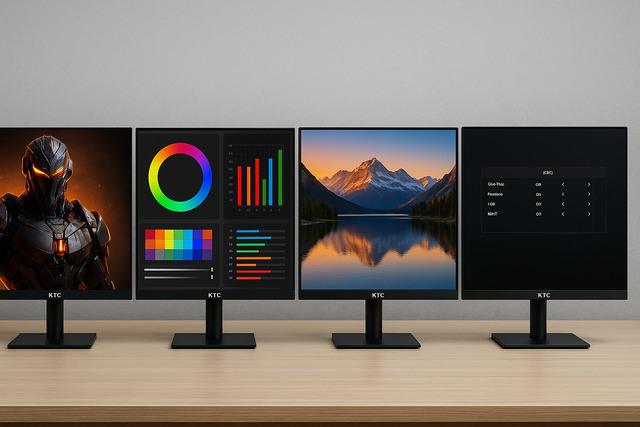
Selecting the right KTC monitor is easier when you compare individual features, screen sizes, and use case preferences. Each model emphasizes different strengths. Some prioritize speed and low latency for gaming, while others focus on color depth and wide gamut reproduction for content creation. Comparing these attributes enables you to determine which version aligns with your workflow.
Performance attributes such as HDR support, port configuration, brightness levels, and panel uniformity contribute to your decision. HDR capable models deliver improved dynamic range, while models with additional USB ports simplify peripheral management.
Ultrawide screens provide enhanced workspace efficiency, making them ideal for multitasking or extended editing timelines.
A comparison chart helps clarify which model meets your expectations before purchasing. Use the following table as a guide to key characteristics that influence monitor performance.
KTC Monitor Feature Comparison
| Feature Category | Entry Level Models | Mid Range Models | Performance Models |
| Display Resolution | Full HD | Quad HD | 4K or Ultrawide |
| Refresh Rate | 75Hz | 144Hz | 165Hz or higher |
| Color Coverage | Basic sRGB | Extended sRGB | Wide gamut |
| Connectivity | HDMI only | HDMI plus DP | HDMI, DP, USB hub |
Connectivity and Compatibility
| Port Type | Common Use Case | Benefit |
| HDMI | Consoles and basic PCs | Widely supported |
| DisplayPort | High refresh PCs | More bandwidth |
| USB C | Laptops | Charging plus data transfer |
Maintain and Update Your KTC Monitor for Long Term Reliability
Proper maintenance ensures your KTC monitor continues to perform reliably for years. Routine cleaning, safe power management, and periodic setting reviews help preserve screen clarity and mechanical smoothness. Keeping dust away from ventilation areas prevents overheating and protects internal components.
Firmware updates play an important role in maintaining compatibility and fixing minor performance issues. Some KTC models allow updates through USB storage devices or software utilities. Applying these updates resolves color accuracy concerns, adaptive sync bugs, or on screen display issues that may affect daily use.
Finally, reviewing your calibration settings every few months helps maintain consistent visual performance, especially if you use the monitor for professional applications. Environmental lighting changes, hardware upgrades, and workflow adjustments all influence how your monitor should be configured.
Clean and Protect the Display
Use microfiber cloths for wiping.
Avoid strong cleaners that damage coatings.
Apply System and Firmware Checks
Monitor for new updates.
Recalibrate settings as your environment changes.
Conclusion
A KTC monitor provides a flexible, high performance viewing solution when correctly selected and optimized. By understanding specifications, adjusting performance settings, configuring color accuracy, organizing your workspace, comparing feature sets, and maintaining your display, you ensure long term reliability and excellent visual results. Following these steps equips you with the knowledge needed to get the most value from your display whether you use it for gaming, creative projects, or everyday productivity.
For more informative articles you can visit our blog Latesttechupdates.com
FAQ’s
What size KTC monitor is best for everyday use
Most users find 24 to 27 inch models ideal for general productivity because they balance clarity, desk space, and comfort.
Does a KTC monitor support gaming consoles
Yes, many models include HDMI ports compatible with major consoles and support appropriate refresh rates for smooth gameplay.
How often should I recalibrate a KTC monitor
Recalibration every few months helps maintain consistent brightness and color performance, especially in changing lighting conditions.
Is a KTC monitor good for creative editing
Models with wide color coverage and IPS panels perform well for photo and video editing thanks to accurate color representation.
Can I mount a KTC monitor on an arm
Yes, many models include VESA mounting patterns that support adjustable arms and wall mounts for improved ergonomics.
How do I reduce screen glare on a KTC monitor
Adjust your workspace lighting, reposition the screen, and tilt it slightly downward to minimize reflections from overhead lights.
